
Installation
Quick Install (Recommended)
$docker compose up -d
[+] Building 2.0s (12/12) FINISHED
[+] Running 3/3
✔ minepanel-backend Started
✔ minepanel-frontend Started
✔ minepanel-db Started
git clone https://github.com/Ketbome/minepanel.git
cd minepanel
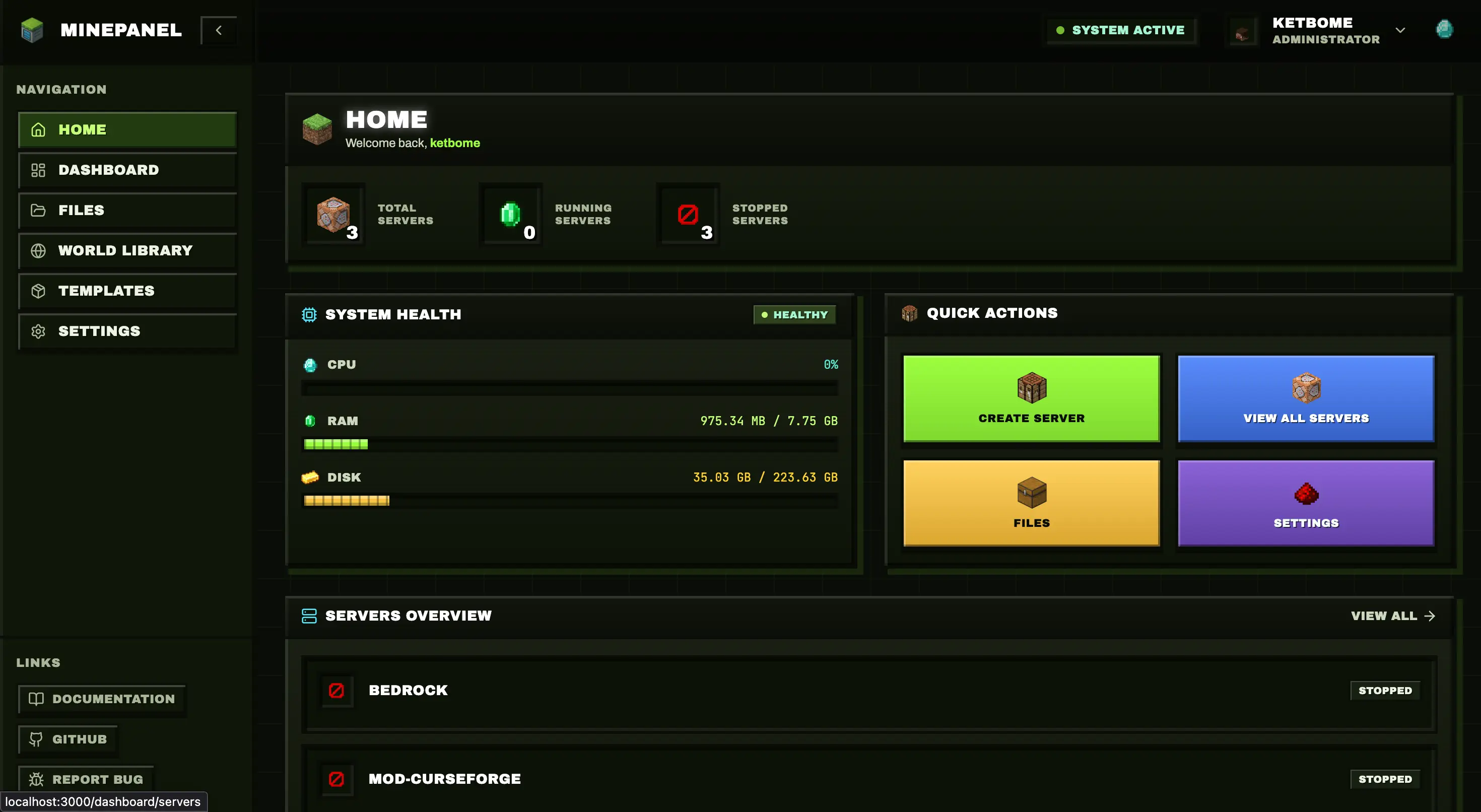
docker compose up -dAccess: http://localhost:3000 → admin / admin
TIP
The default docker-compose.yml runs split backend/frontend images. For a single combined image, use docker-compose.single.yml.
Configuration
Create a .env file for custom settings:
# Authentication
JWT_SECRET=your_secret_here  # openssl rand -base64 32
ALLOW_INSECURE_AUTH_COOKIES=false  # Set true only if using HTTP (LAN/dev)

# Ports (optional)
FRONTEND_PORT=3000
BACKEND_PORT=8091

# Base directory
BASE_DIR=$PWD→ All variables: Configuration
HTTP access note
If you access Minepanel via plain HTTP (local IP) and login gets stuck on "Verifying authentication...", set ALLOW_INSECURE_AUTH_COOKIES=true. Use this only on trusted networks and prefer HTTPS.
Update
$docker compose pull && docker compose up -d
Pulling frontend ... done
Pulling backend ... done
[+] Running 3/3
✔ Containers updated successfully
cd minepanel
git pull
docker compose pull
docker compose up -dInstallation Options
Single Image
All-in-one container (simpler):
docker compose -f docker-compose.single.yml up -dDevelopment Build
Build from source:
docker compose -f docker-compose.development.yml up --build -dTest Images (Pre-release)
Test images are built from non-main branches for pre-release testing:
docker compose -f docker-compose.test.yml up -dWARNING
Test images may contain unstable features. Use for testing only, not production.
With Reverse Proxy (SSL)
For nginx-proxy/Traefik setups:
# Add to docker-compose.yml
networks:
  default:
    name: nginx-proxy
    external: true

services:
  frontend:
    environment:
      - VIRTUAL_HOST=minepanel.yourdomain.com
- LETSENCRYPT_HOST=minepanel.yourdomain.com→ Full guide: Networking - SSL
Platform Notes
Linux
sudo usermod -aG docker $USER # Then log out/inWindows
Use WSL2 with Docker Desktop.
Raspberry Pi
Works on ARM64. Same commands, Docker pulls correct architecture automatically.
Uninstall
docker compose down          # Stop containers
rm -rf servers/ data/        # Remove data (CAREFUL!)
docker rmi ketbom/minepanel # Remove imageNext
- Configuration - All settings
- Networking - Remote access, SSL
- Features - What you can do