
Administration
Manage passwords, database, backups, updates, and system maintenance.
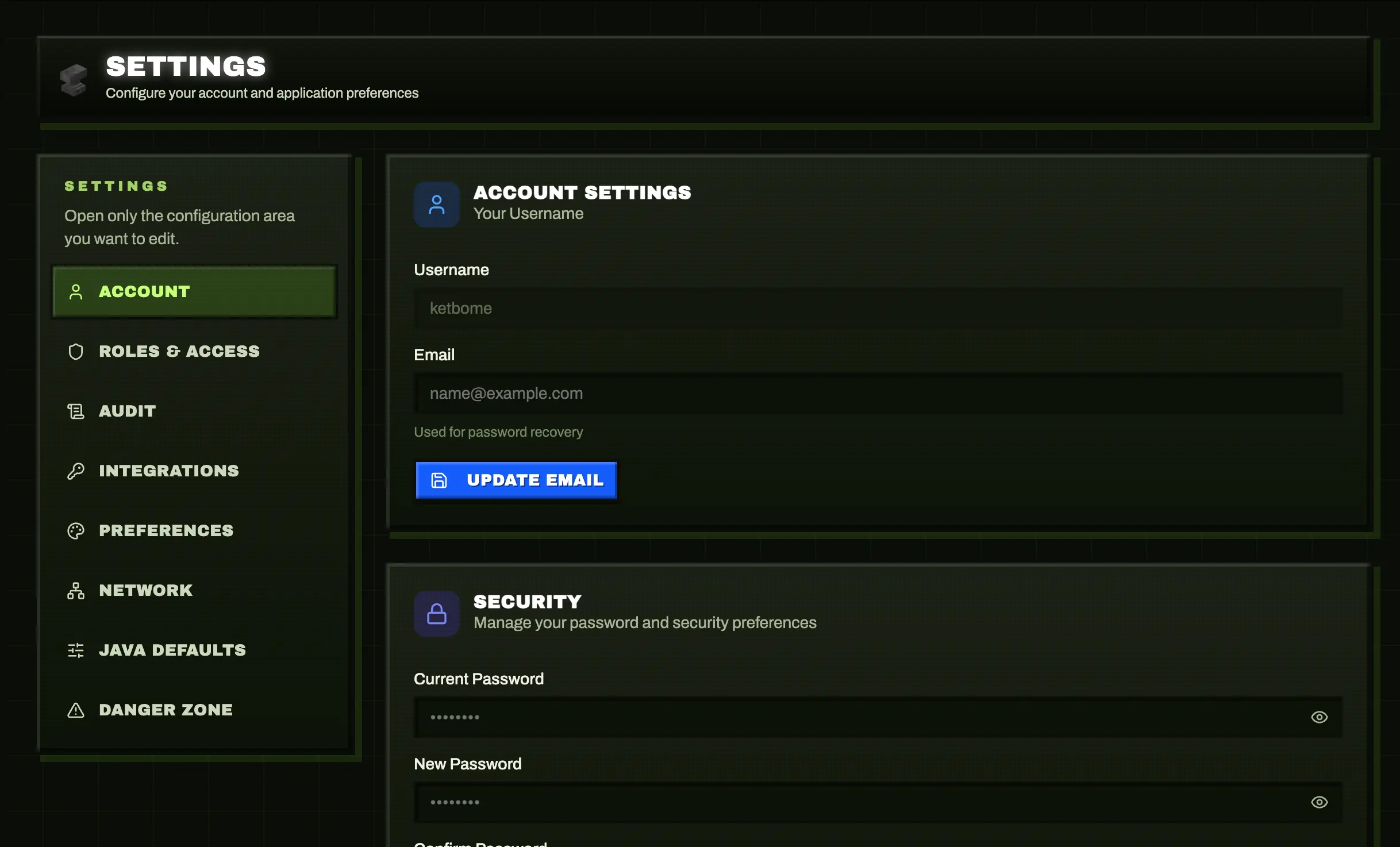
Password Management
Change Admin Password
From UI
- Click on your profile (admin) in the top right
- Select "Change Password"
- Enter current password
- Enter new password
- Confirm new password
- Click "Save"
The password is hashed with bcrypt and stored securely in the database.
From Environment Variable
WARNING
This method only works for the FIRST login. After that, use the UI method above.
Open the panel and complete the initial admin registration form.
If you also want password recovery, configure SMTP in docker-compose.yml or .env before starting the stack:
environment:
  - SMTP_HOST=smtp.example.com
  - SMTP_PORT=587
  - SMTP_SECURE=false
  - SMTP_USER=your_smtp_user
  - SMTP_PASS=your_smtp_password
- SMTP_FROM=Minepanel <no-reply@example.com>Restart:
docker compose restartForgot Your Password?
If you've forgotten your password and can't access the UI:
Option 1: Use the password reset email
If SMTP is configured and your account has an email address, use Forgot your password? on the login screen.
Option 2: Reset the database
WARNING
This will delete ALL your servers and configuration!
docker compose down
rm -f data/minepanel.db
docker compose up -dAfter that, Minepanel will show the initial setup screen again so you can register a new admin account.
Option 3: Manual database update (Advanced)
If you know SQL and want to keep your servers:
# Stop minepanel
docker compose stop minepanel

# Install sqlite3 if needed
sudo apt install sqlite3

# Connect to database
sqlite3 data/minepanel.db

# Generate new password hash (use bcrypt online tool or Node.js)
# Then update:
UPDATE users SET password = 'your_bcrypt_hash_here' WHERE username = 'admin';

# Exit sqlite
.exit

# Start minepanel
docker compose start minepanelTo generate a bcrypt hash:
// Using Node.js
const bcrypt = require('bcrypt');
const hash = bcrypt.hashSync('your_new_password', 10);
console.log(hash);Roles and User Access
Minepanel now includes the first phase of user roles and access control.
Roles
ADMINhas full access to the panel and is not restricted by user permissions.USERcan only access the features and servers explicitly assigned to them.
Delegated user management
Minepanel also supports delegated operators through the manageUsers permission.
- They can open Roles & Access
- They can create and manage invitation links
- They can open the audit page
- They do not become full administrators
- Audit retention and other high-risk settings remain restricted to
ADMIN
User Access Controls
For USER accounts, Minepanel can now control:
- Access to all servers
- Access to specific servers when global server access is disabled
- Log viewing
- Console usage
- Global file browser access
- Global file management
- Server file access
- Server file management
If a user can access a server, they can view and operate that server. Logs and console are separate permissions, so a user can read logs without being allowed to run commands.
Backend enforcement
Minepanel does not trust permissions edited in the browser.
- Authentication is stored in
httpOnlycookies - The frontend may cache the current user briefly in memory only to reduce repeated session lookups
- The backend still loads the current user and enforces permission checks again before returning protected data or executing actions
Changing local browser state does not grant real access if the backend denies the request.
Invitations
New users are created through invitation links.
- Open Settings as an
ADMIN - Go to the User invitations section
- Choose the new user's permissions and server access
- Create the invitation link
If SMTP is configured and you provide an email address, Minepanel can also send the invitation by email.
Invitation management now behaves like this:
- the UI no longer exposes the raw invitation URL by default
- pending invitations provide a Copy link action instead
- copying the link reissues a fresh token server-side and returns a new URL
- used, expired, or already-resolved invitations are removed from the pending list
SMTP for Invitations and Password Recovery
Minepanel uses the same SMTP configuration for both password recovery and user invitations:
environment:
  - SMTP_HOST=smtp.example.com
  - SMTP_PORT=587
  - SMTP_SECURE=false
  - SMTP_USER=your_smtp_user
  - SMTP_PASS=your_smtp_password
- SMTP_FROM=Minepanel <no-reply@example.com>After updating SMTP settings:
docker compose restartEmail change confirmation
The same SMTP setup is now used for account email changes.
When SMTP is configured:
- Open Settings -> Account
- Enter the new email address
- Minepanel sends a confirmation code to the new address
- Enter the code in the panel to complete the change
If SMTP is not configured, the email change is applied immediately.
Audit Log
Minepanel now records a first audit trail for important account and server actions.
What is tracked
- login
- invitation creation, copy, and acceptance
- password changes
- email change request and confirmation
- user access updates and user deletion
- server configuration saves
- server start, stop, and restart
- server console commands
Access
ADMINcan view the audit pageUSERaccounts withmanageUserscan also view the audit page
Retention
- default retention is 15 days
- admins can change the retention from Settings -> Preferences
- old audit records are cleaned automatically
Database Management
Database Location
Minepanel uses SQLite and stores its database at:
./data/minepanel.dbThis file contains:
- User credentials
- Server configurations
- Settings
- API keys
Backup Database
Manual backup:
cp data/minepanel.db data/minepanel.db.backupAutomated backup script:
#!/bin/bash
# backup-minepanel.sh

DATE=$(date +%Y%m%d_%H%M%S)
BACKUP_DIR="./backups/minepanel"
mkdir -p $BACKUP_DIR

# Backup database
cp data/minepanel.db "$BACKUP_DIR/minepanel_$DATE.db"

# Keep only last 7 days
find $BACKUP_DIR -name "minepanel_*.db" -mtime +7 -delete

echo "Backup completed: minepanel_$DATE.db"Make it executable and add to cron:
chmod +x backup-minepanel.sh

# Add to crontab (daily at 2 AM)
crontab -e
0 2 * * * /path/to/backup-minepanel.shRestore Database
# Stop minepanel
docker compose down

# Restore from backup
cp data/minepanel.db.backup data/minepanel.db

# Start minepanel
docker compose up -dDatabase Inspection
To view database contents:
sqlite3 data/minepanel.db

# List tables
.tables

# View users
SELECT * FROM users;

# View servers
SELECT id, serverName, serverType, port, active FROM servers;

# Exit
.exitReset Database
WARNING
This will delete ALL your servers, users, and configuration!
docker compose down
rm -f data/minepanel.db
docker compose up -dAfter reset, Minepanel will show the initial setup screen again.
Server Commands
Auto-Stop + Restart Policy Compatibility
When Auto-Stop is enabled, restart policy must be no.
- Frontend behavior: enabling Auto-Stop immediately switches restart policy to No restart
- Backend behavior: incompatible saves are normalized automatically to
restartPolicy: no - Existing servers with incompatible values are fixed on next save
This prevents Docker from automatically restarting a server after Auto-Stop intentionally shuts it down.
Java Edition (RCON)
Java servers use RCON for command execution. Commands are sent and responses are returned directly:
# From Minepanel UI: Commands tab
/say Hello World
/gamemode creative player1
/time set dayCommand payloads are validated and normalized before execution:
- Leading/trailing whitespace is trimmed
- Control characters are removed
- Empty commands after normalization are rejected with a validation error
- Console output is sanitized to remove ANSI escape sequences
Bedrock Edition (send-command)
Bedrock servers use the send-command script. Command output appears in server logs:
# Manual execution
docker exec CONTAINER_NAME send-command gamerule dofiretick false
docker exec CONTAINER_NAME send-command say Hello WorldBedrock Command Output
Unlike RCON, Bedrock commands don't return output directly. Check the Logs tab to see command results.
Common Commands
| Command | Java | Bedrock | Description |
|---|---|---|---|
/list | ✅ | ✅ | Show online players |
/say | ✅ | ✅ | Broadcast message |
/gamemode | ✅ | ✅ | Change player gamemode |
/time | ✅ | ✅ | Set world time |
/weather | ✅ | ✅ | Set weather |
/gamerule | ✅ | ✅ | Modify game rules |
/op | ✅ | ✅* | Make player operator |
/whitelist | ✅ | ✅ | Manage whitelist |
*Bedrock uses XUIDs instead of player names for permissions.
Quick Actions Notes
gamerulequick actions are compatible with both naming styles (keepInventoryfor older versions andkeep_inventoryfor 1.21+)- PvP toggle uses the server command
pvp true|false(notgamerule pvp)
Server Backups
Automatic Backups
Minepanel supports automatic backups for individual Minecraft servers. Configure in the server settings:
Backup Methods:
tar- Traditional tar archives (default)rsync- Incremental backupsrestic- Encrypted, deduplicated backupsrclone- Cloud storage backups
Example configuration:
services:
  mc:
    # ... server config ...

  backup:
    image: itzg/mc-backup
    container_name: my-server-backup
    depends_on:
      - mc
    environment:
      BACKUP_METHOD: tar
      BACKUP_INTERVAL: 24h
      INITIAL_DELAY: 2m
      BACKUP_NAME: world
      DEST_DIR: /backups
      PRUNE_BACKUPS_DAYS: 7
      RCON_HOST: mc
      RCON_PORT: 25575
      RCON_PASSWORD: your_rcon_password
    volumes:
      - ./mc-data:/data:ro
- ./backups:/backupsManual Backup
From the Minepanel UI:
- Go to server details
- Click "Backup Now"
- Wait for completion
- Download from the Files tab
Or manually:
# Backup a specific server
cd servers/my-server
tar -czf ../my-server-backup-$(date +%Y%m%d).tar.gz mc-data/Restore from Backup
- Stop the server
- Extract backup to
mc-datafolder - Start the server
docker compose stop mc
tar -xzf backup.tar.gz -C servers/my-server/
docker compose start mcUpdates
Update Minepanel
Using Docker Compose:
# Pull latest image
docker compose pull

# Restart with new image
docker compose up -dCheck for updates:
# Check current version
docker images ketbom/minepanel

# Check latest version on Docker Hub
https://hub.docker.com/r/ketbom/minepanel/tagsUpdate Minecraft Server
Minecraft servers auto-update when restarted (unless you specified a specific version).
To update manually:
- Stop server
- Change VERSION environment variable
- Restart server
Rollback
If an update causes issues:
# Use specific version
docker compose down
docker tag ketbom/minepanel:latest ketbom/minepanel:backup
docker pull ketbom/minepanel:v1.0.0  # previous version
docker compose up -dResource Management
Check Resource Usage
# View container stats
docker stats

# View specific container
docker stats minepanel

# Check disk usage
docker system dfClean Up
# Remove unused images
docker image prune -a

# Remove unused volumes
docker volume prune

# Complete cleanup
docker system prune -a --volumesLogs Management
View logs:
# All services
docker compose logs

# Specific service
docker compose logs minepanel

# Follow logs
docker compose logs -f

# Last 100 lines
docker compose logs --tail 100Limit log size:
Add to docker-compose.yml:
services:
  minepanel:
    logging:
      driver: "json-file"
      options:
        max-size: "10m"
max-file: "3"System Defaults
Reset to Defaults
To reset Minepanel to default settings (keeps servers):
# Stop containers
docker compose down

# Remove only configuration
rm -f data/minepanel.db

# Restart
docker compose up -dComplete Reset
DANGER
This removes EVERYTHING including all servers!
docker compose down
rm -rf data/
rm -rf servers/
docker compose up -dMaintenance Mode
To perform maintenance:
# Stop all services
docker compose stop

# Perform maintenance (backups, updates, etc.)
# ...

# Start services
docker compose startOr stop specific services:
# Stop only Minepanel (keeps servers running)
docker compose stop minepanel

# Restart
docker compose start minepanelHealth Checks
Container Health
# Check container status
docker compose ps

# Inspect container
docker inspect minepanel

# Check logs for errors
docker compose logs minepanel | grep -i errorService Health
# Test API endpoint
curl http://localhost:8091/health

# Test frontend
curl http://localhost:3000Best Practices
- Regular Backups - Backup database and server data regularly
- Update Regularly - Keep Minepanel and servers up to date
- Monitor Resources - Watch disk space and memory usage
- Secure Passwords - Change default passwords immediately
- Use HTTPS - In production, always use SSL/TLS
- Document Changes - Keep notes of custom configurations
- Test Restores - Periodically test backup restoration
Next Steps
- Configure Networking & Remote Access
- Set up Server Types
- Review Troubleshooting Guide